CimLM License Manager - Connection Error
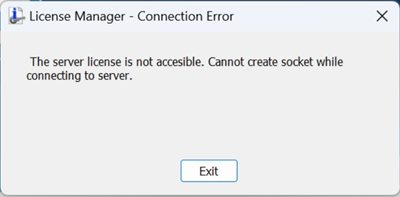
That message means that the client could not communicate with the server service over the specified port.
First, verify that the service is running correctly on the server with the CimService Monitor, which was installed as part of the server software.
If you do not see the launch icon, you can find the executable in:
C:\Program Files\3D Systems\License Server
You can stop and start the service from here and check the Status down in the lower left corner.
On the client computer you can check the client-side license manager to see if it can connect to the server.
C:\Program Files\CAMBRIO\GibbsCAM\<version>\Bin\CimLicManager.exe
Here you can set the server IP address and port number that it should be looking for. Make sure this matches your server and click "SAVE" for any changes made.
---
Next, try recreating the license file on the server and copying the newly created license file directly from the server location and place it in the client location.
Let's first delete any license file on your server in this folder "C:\ProgramData\3D Systems\LicFiles\Network". (".cml" and ".lic")
Next, go to "C:\Program Files\3D Systems\License Server" and run the RegistrationTool.exe. Make sure it creates a new ".cml" file.
Server Location:
C:\ProgramData\3D Systems\LicFiles\Network
Client Location:
C:\ProgramData\CAMBRIO\GibbsCAM\LicenseData\220.0
(clear out any existing files in this folder)
Verify the service has restarted.
---
If the service is running correctly, but the client still cannot see the service through the specified port; this would indicate that something is blocking the client from seeing the service through that port.
You can check to see if you can communicate over the port that is being used by the server. The default is port 10106.
---Windows 10/11---
On the client you can use Windows PowerShell (For Windows 10/11) to see if the client can communicate over the port that is being used.
Open Windows PowerShell through the Start menu
Use the command "test-netconnection IPAddress -port 10106"
Replace "IPAddress" with your server's IP Address
If you have changed the port being used through the CimService Monitor change "10106" to whichever port you selected.
This will test to see if the client computer has access to communicate over the port. If it succeed that means that the client is able to use that port.
If it fails, this means that something is blocking the client from communicating over that port. This could be anything from network permissions, security software, or router settings. You will need to figure out what is blocking this port and get it allow access.
---
If the service is running correctly and you are able to communicate through the port, please send us the logs from both the client and server computer.
Client Log Files:
C:\ProgramData\CAMBRIO\GibbsCAM\LicenseData\220.0
(CimLmLib.log)
Server Log Files:
C:\Program Files\3D Systems\License Server\Log