Update CimLM NLO Server License

Update CimLM NLO Server License

Here are the general steps to update your GibbsCAM CIMLM (Cimatron License Manager) server. 


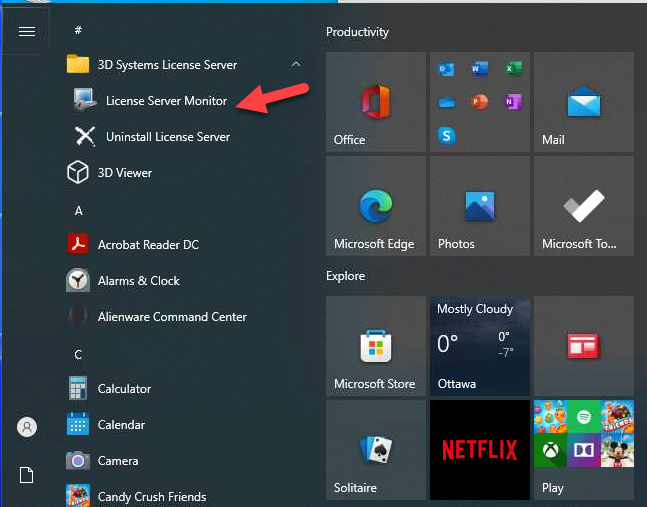
1. At the server, open "License Server Monitor".

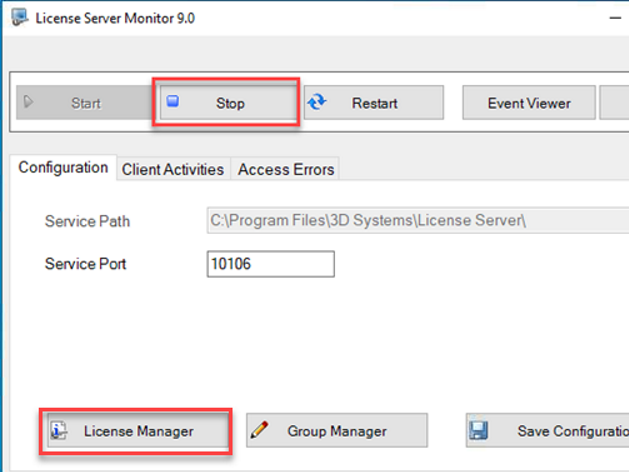
2.  Stop NLO Service and click License Manager.

3.  Backup (Optional but Recommended): 

Although the update process is usually straightforward, it's always a good practice to back up your current license files and server configuration in case something goes wrong.


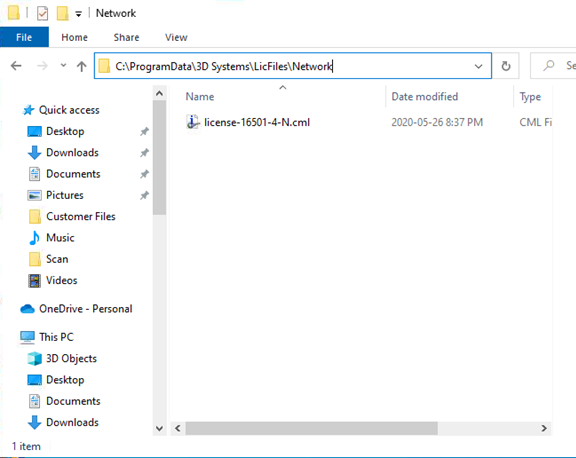
If you encounter issues overwriting the license file during activation, try removing the existing license file from the data folder first.

C:\ProgramData\3D Systems\LicFiles\Network

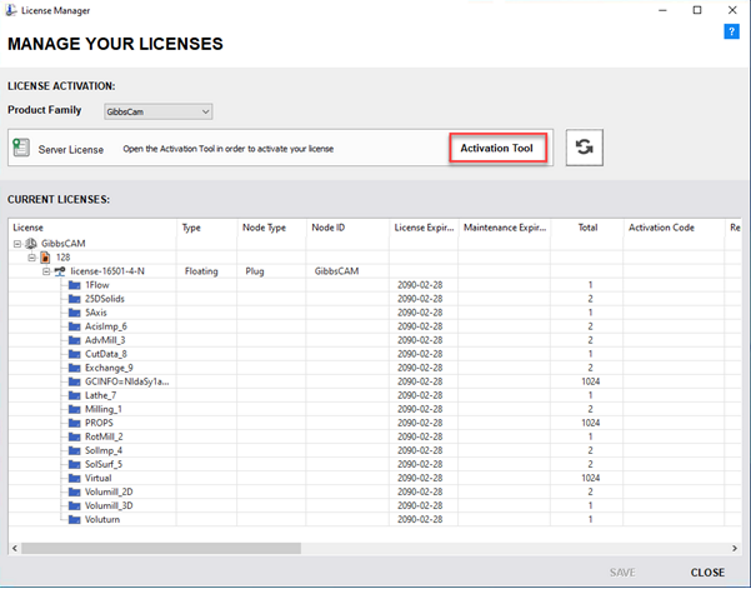
4. Click Activation Tool.

5. Generate and Deploy the New License File: 

Select Network License Server and run Registration Tool. Follow the wizard to complete the activation.
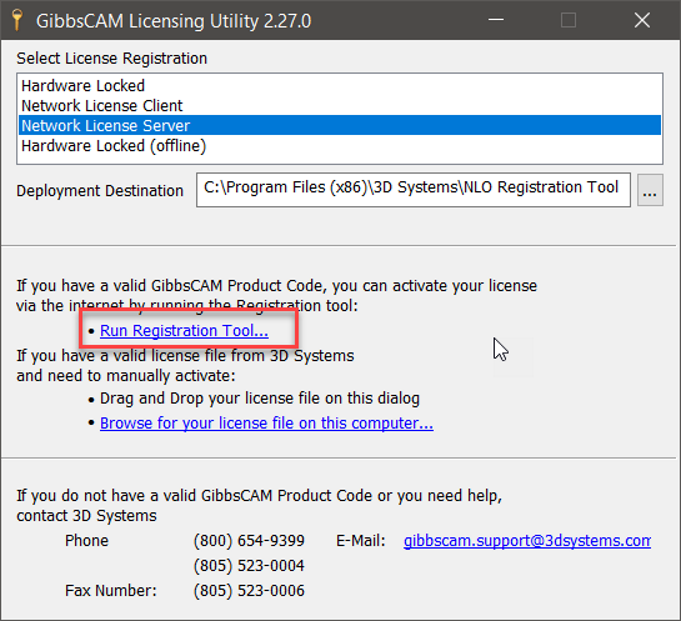

6. Once the server license is updated and the service has started, run the Regi Tool to update clients.

Client Activation Instructions (In license Type, select Network Client):

https://westcam.com/knowledge-base/registering-gibbscam/


    • Related Articles

    • GibbsCAM Reprise NLO Server Installation Instructions

      Installation of the Network License Option (NLO) is a two-phase process: In Phase 1, you set up the server. In Phase 2, you install and register the client software on each node. GibbsCAM NLO/Network Licensing Video: ...
    • Update GibbsCAM Reprise NLO/Network Server License

      The Network License update is a two-phase process: In Phase 1, update the server license. In Phase 2, install and/or register the client software on each node. Phase 1 Update the license server: Stop the Reprise server service. Backup (Optional but ...
    • GibbsCAM CimLM Network License Installation

      Please note that GibbsCAM CimLM Network server software is only compatible with GibbsCAM 13 to GibbsCAM 2023. For GibbsCAM 2024 or newer version, please install GibbsCAM Reprise NLO Server Installation Instructions. Installation of the Network ...
    • NLO Roaming License

      NLO License borrowing with checkout/return/expiry parameters Users can now check out an NLO license for 30 days, then disconnect from the network. This allows users to borrow licenses, disconnect, move their laptop, and keep using the GibbsCAM ...
    • CimLM License Manager - Connection Error

      That message means that the client could not communicate with the server service over the specified port. First, verify that the service is running correctly on the server with the CimService Monitor, which was installed as part of the server ...