Adding A New Font to GibbsCAM Engraving
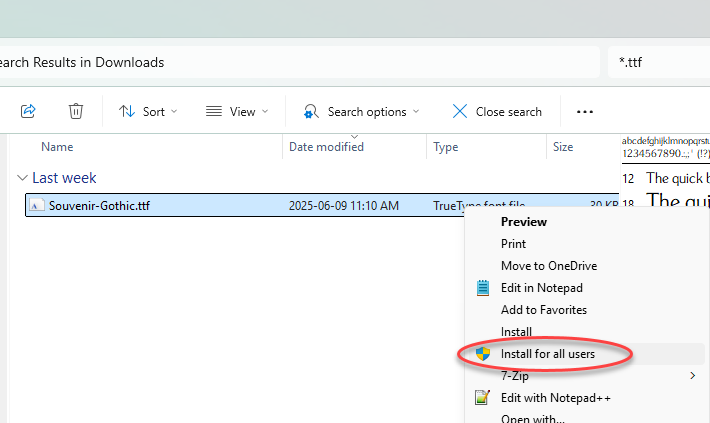
To add a new font into the GibbsCAM engraving dialog, in Window Explorer, right-click on the font file. Select Install for All Users.
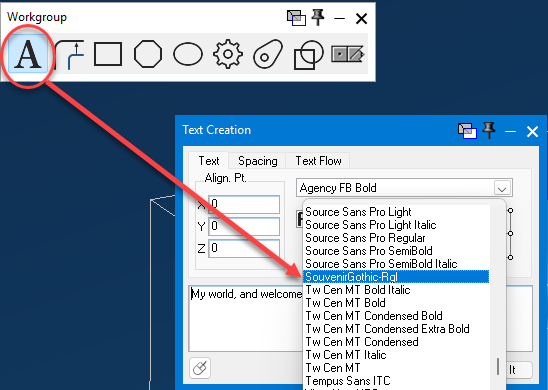
The next time you launch GibbsCAM, the font will appear in the list:
Related Articles
How to Move GibbsCAM to a New Computer?
This tech tip walks you through the steps to install GibbsCAM on your new machine and transfer all your essential files—like MDDs, VMMs, macros, and more—so nothing gets left behind. Download the latest version of GibbsCAM here: ...GibbsCAM Reprise NLO Server Installation Instructions
Installation of the Network License Option (NLO) is a two-phase process: In Phase 1, you set up the server. In Phase 2, you install and register the client software on each node. GibbsCAM NLO/Network Licensing Video: ...Installing GibbsCAM Software
Before you install the software, ensure that you meet the system requirements and that you have installed the most recent service pack for your operating system and the latest drivers for your video card. GibbsCAM System Requirements for Running ...Updating GibbsCAM Reprise NLO/Network Server License
The Network License update is a two-phase process: In Phase 1, update the server license. In Phase 2, install and/or register the client software on each node. Phase 1 Update the license server: Stop the Reprise server service. Backup (Optional but ...GibbsCAM Froze on Loading
Delete User Preferences Files. Make sure "Hidden Items" is checked if the "ProgramData" folder is missing. Go to the folder below and delete all the files and folders in it. Upon relaunching, GibbsCAM will rebuild everything that is needed. For Gibbs ...