How to Update the GibbsCAM Reprise NLO Network Server License
The Network License update is a two-phase process: In Phase 1, update the server license. In Phase 2, install and/or register the cl software on each node.
Phase 1
Update the license server:
Stop the Reprise server service.
Backup (Optional but Recommended):
Although the update process is usually straightforward, it's always a good practice to back up your current license files and server configuration in case something goes wrong. The license files are typically located in
C:\Program Files\GibbsCAM\GibbsCAM NLO Server 2024\license-XXXXX-XX.lic.
Run Registration Tool: Navigate to the installation directory of the license server software (e.g., C:\Program Files\GibbsCAM\GibbsCAM NLO Server 2024\) and run RegistrationTool.exe as an administrator.
Select "Network License Server" and click "Run Registration Tool".
Enter your product code and select "Next".
GibbsCAM Product Code: XXXX-XXXX-XXXX-XXXX
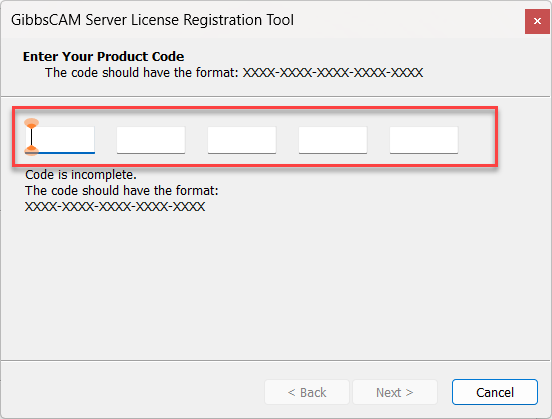
Complete the contact information and select "Next".
Select "Finish".
A confirmation message will appear once the license has been successfully deployed.
If you are unable to complete the deployment, contact support@westcam.com for assistance.
C:\Program Files\GibbsCAM\GibbsCAM NLO Server 2024
7. Restart the Reprise Server Service.
8. You can verify that the service is running correctly on the server through the Reprise License Server Administration page which your server will be hosting.
See the instructions in the link below:
Phase 2
Update the client computer
1. Download and install GibbsCAM client software if needed (Do not install GibbsCAM Classroom Edition).
2 Run the Registration Tool to update clients.
Client Software Activation Instructions:
https://westcamsolutionsinc.zohodesk.ca/portal/en/kb/articles/registering-gibbscam-2-2-2026